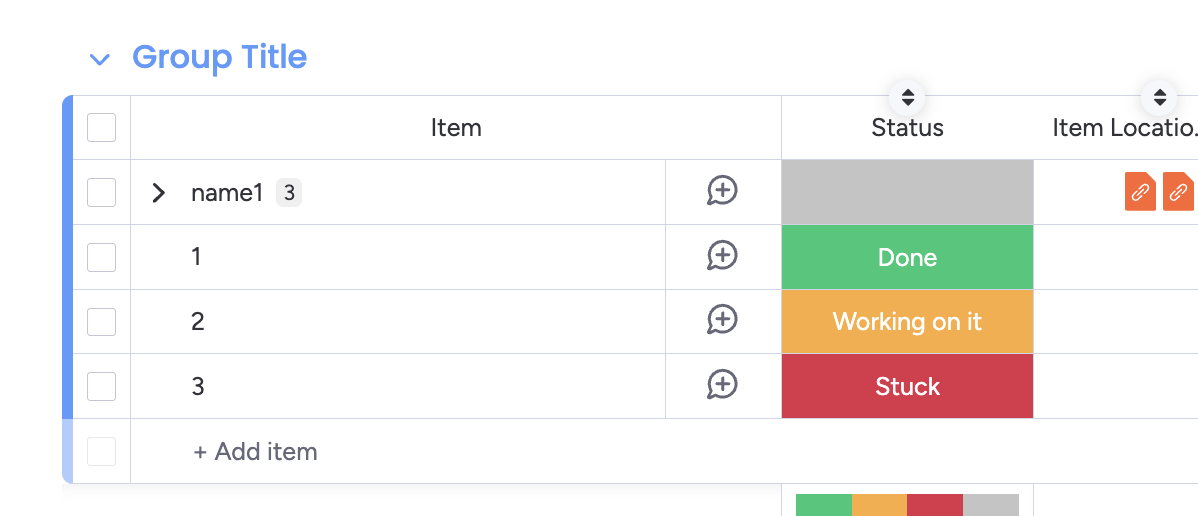
in this tutorial, we will show how you can import statuses from an Excel sheet into your monday.com boards.
Install the Data Importer app for monday.com
-
You can install the Data Importer app from the monday.com app marketplace.
-
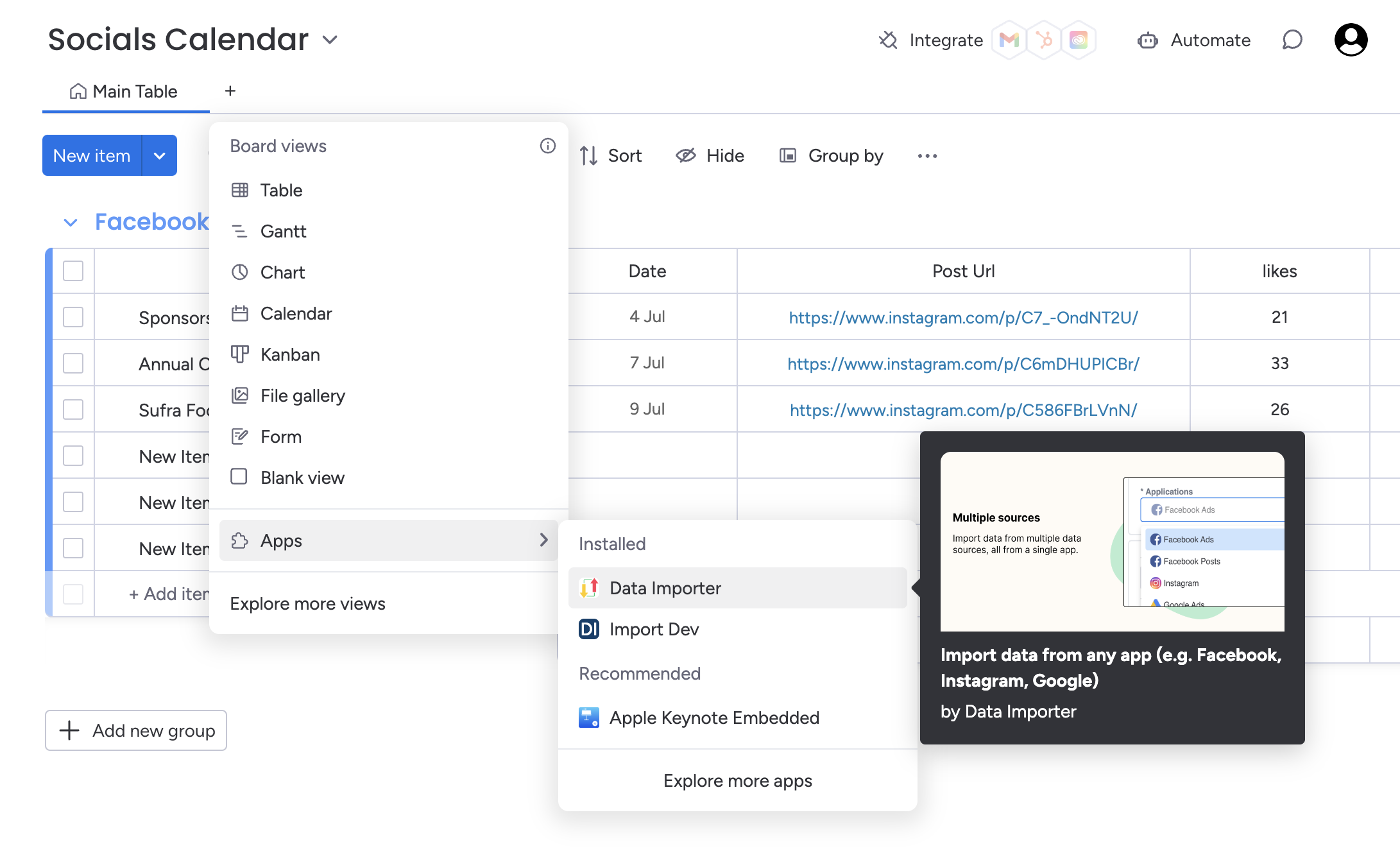
Once you’ve installed the app, you can return back to your board, then press then press the add view button.
-
Select the ‘Board views’ dropdown, press ‘Apps’ then select the ‘Data Importer’ app. This will load a new board view with the Data Importer app.
Set-up your Excel file
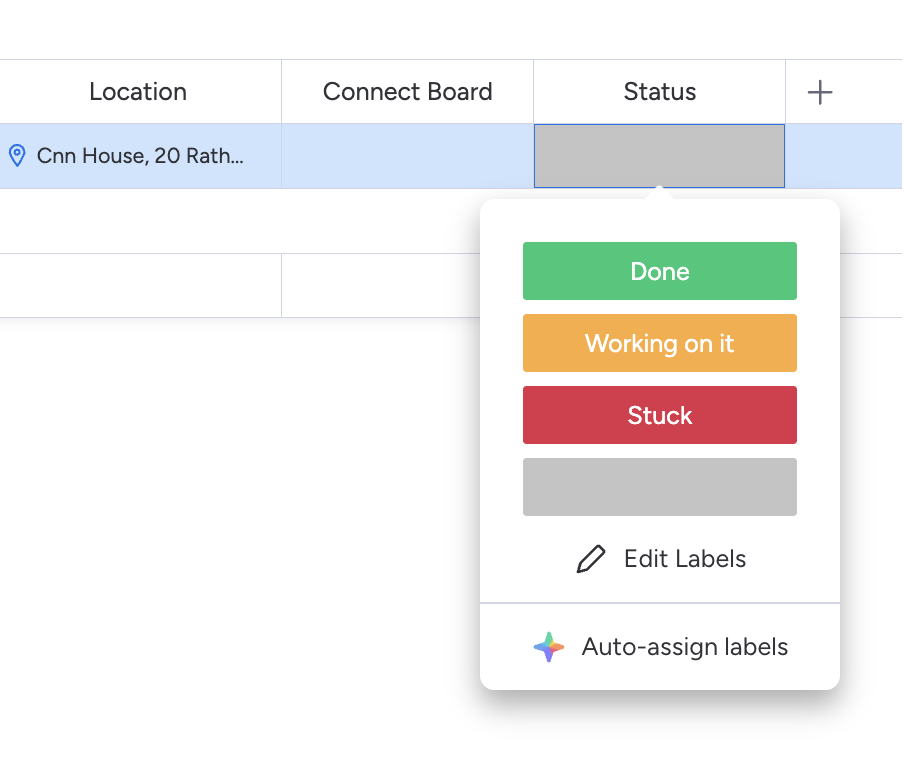
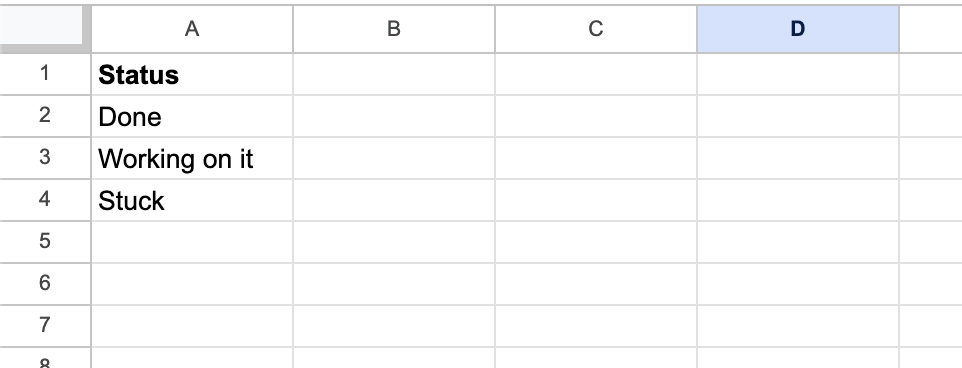
It's important that your status values match exactly as to how they are defined in monday.com. They are case sensitive.
Important: if your Excel contains statuses that are not currently in your monday board, they will need to be added to your monday board first.
Select your Excel file
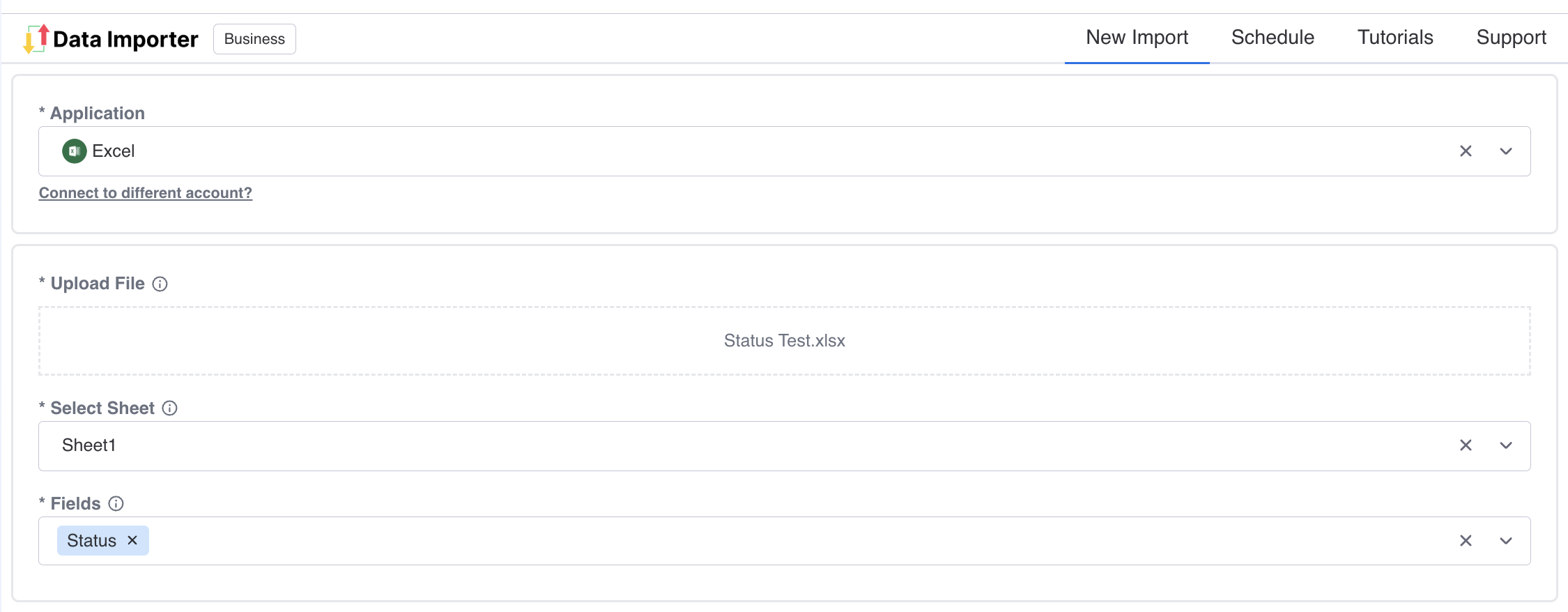
1. Select the Excel application from the dropdown list.
2. Drop in, or click to select the excel you want to import. Make sure that the file format is either .xls or .xlsx. It is also important to ensure that the field names are in the first row of your excel sheet.
3. Select the fields that you want to import, including your status column field.
Map your status column
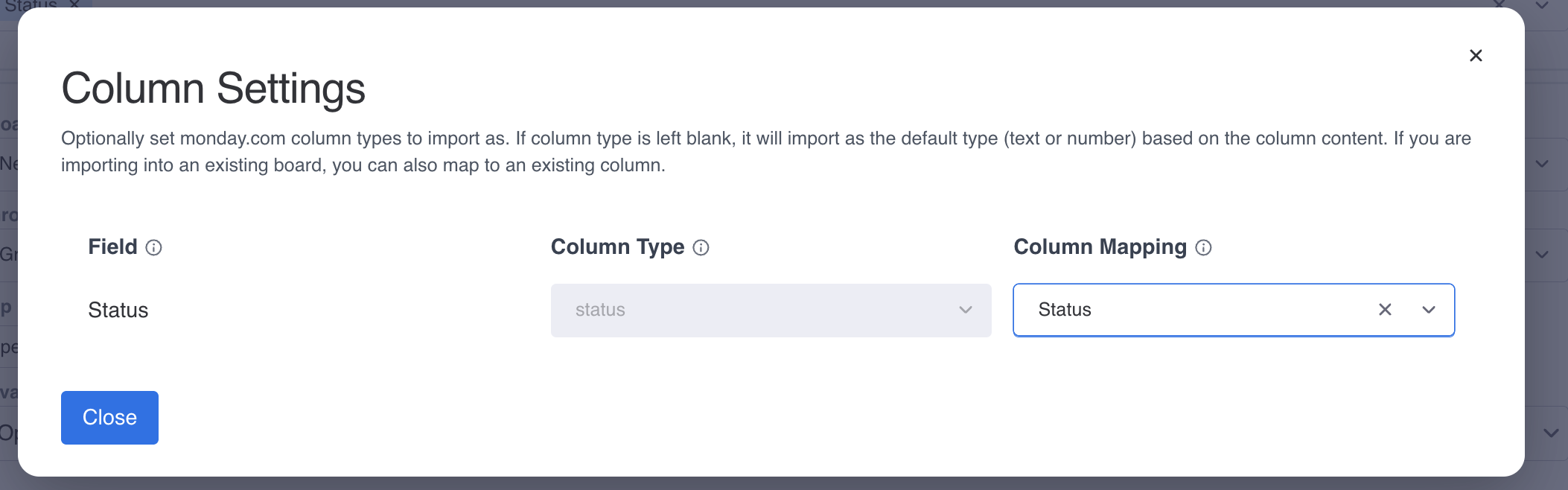
Press on the Map Columns button, and then map your Excel field to your status column in monday.com.
View Your Data
1. Once you’ve filled out all the required fields, press the blue Run button.
2. For large imports, Data Importer will run these in the background so that you can close the view and continue with your other tasks.
3. Once you've opened your import, you'll be able to see your new board that contains all your imported items with the status