How to Import HubSpot Contacts Into monday (Integration)
In this tutorial, we'll show how you can bulk import HubSpot contacts into your monday.com boards using an app called Data Importer.
Install the Data Importer app for monday.com
- You can install the Data Importer app from the monday.com app marketplace.
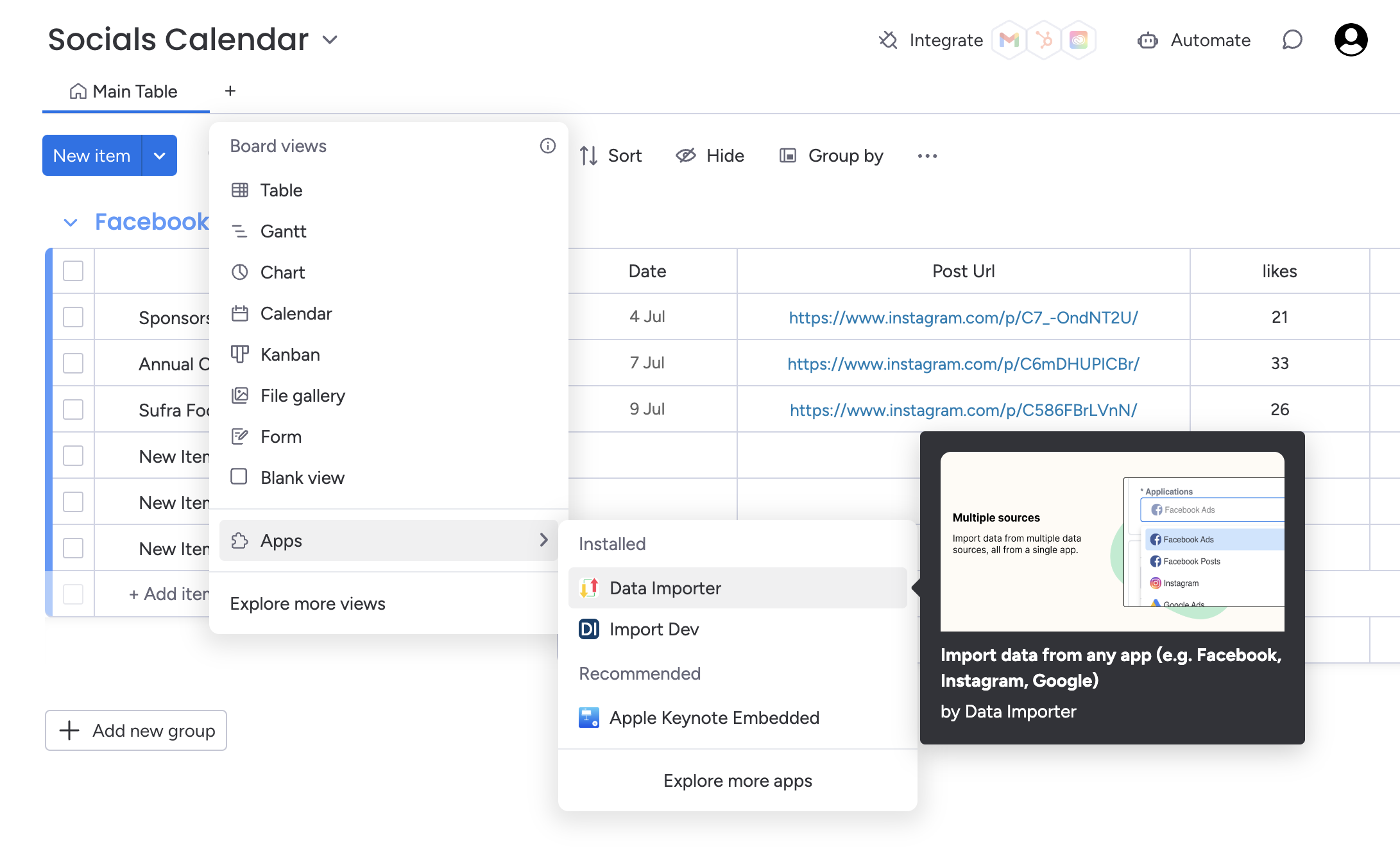
- Once you’ve installed the app, you can return back to your board, then press the add view button.
- Select the ‘Board views’ dropdown, press ‘Apps’ then select the ‘Data Importer’ app. This will load a new board view with the Data Importer app.
Connect to your HubSpot account
Select the HubSpot application from the dropdown list, then press the blue Connect button.
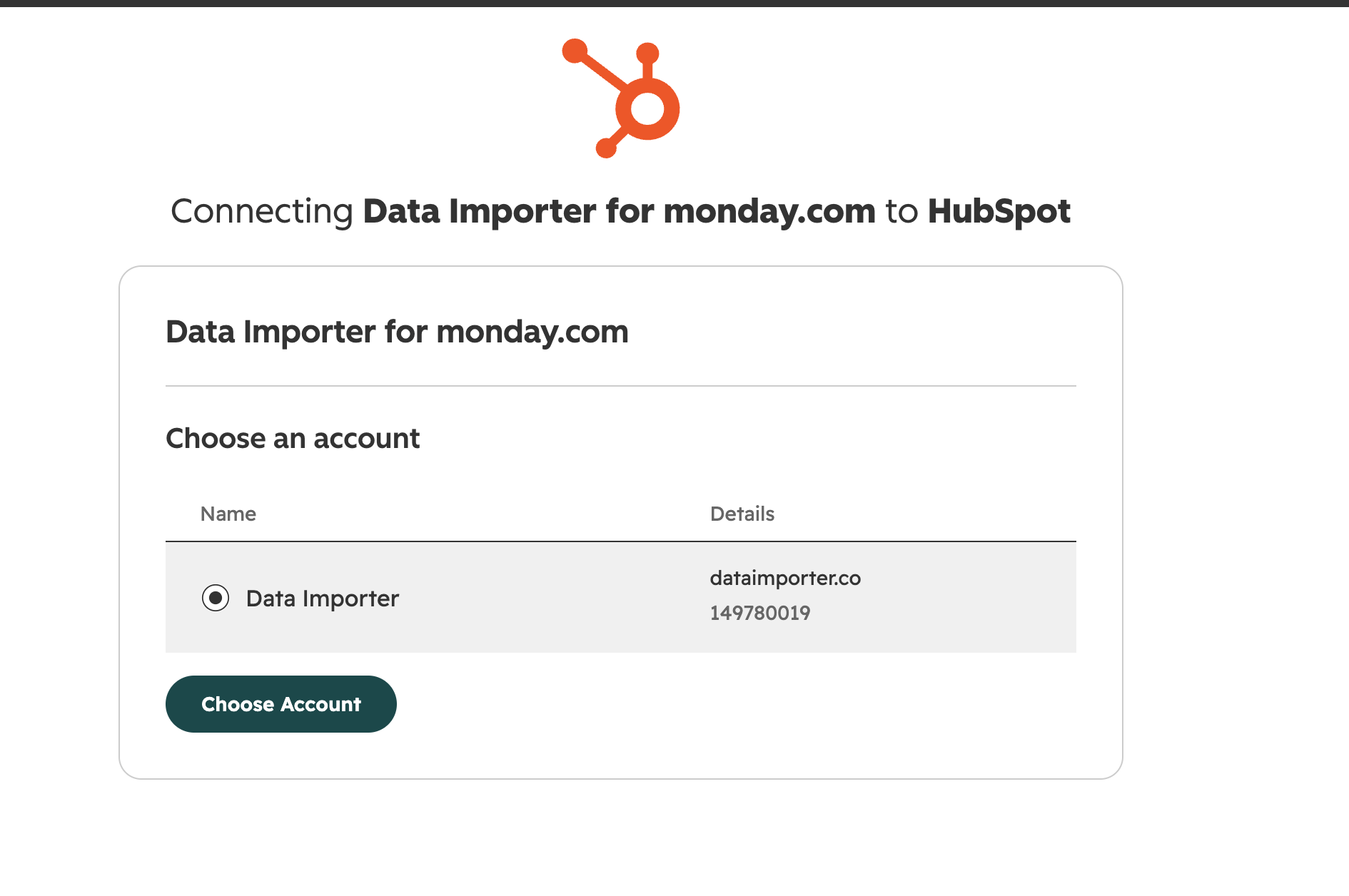
A new tab will open up that will allow you to connect your account with HubSpot. Sign into HubSpot, choose the account you want to connect, then press the Choose Account button. You can always connect to a different account later if you need to.
Set-up Your Integration with HubSpot
Once you’ve connected your HubSpot account, you’ll be redirected back to the Data Importer app.
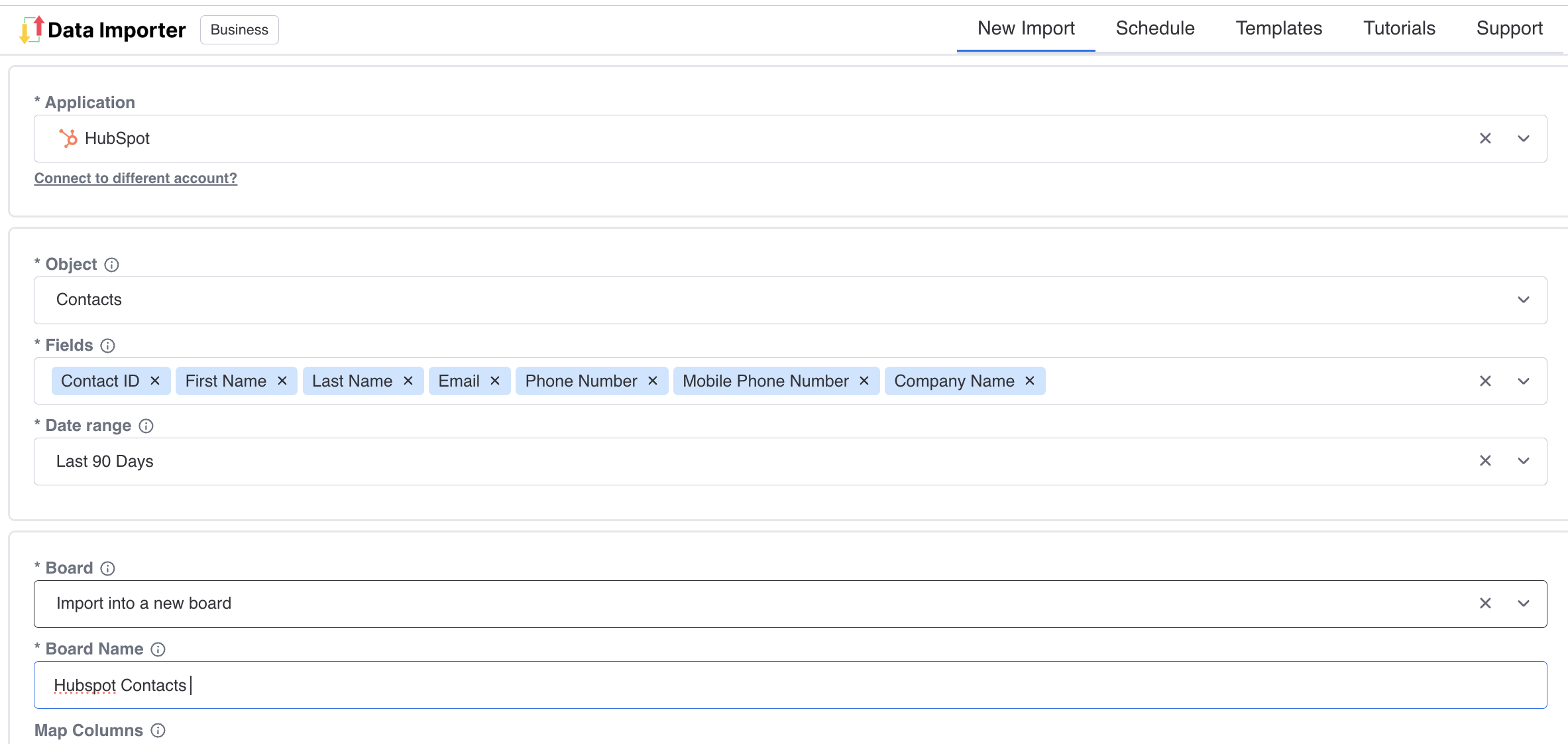
Select 'Contacts' as the object you want to import, then choose the fields you want to bring across, such as Contact ID, First Name, Last Name, Email, Phone Number and Company Name.
Select the date range for the contacts you want to import, for example the last 90 days.
Select 'Import into a new board' and give your board a name.
Optional: Map Columns to your Monday Board
If you want to import your contacts into an existing board and group, follow the below steps:
Select your existing monday board and the group you want to import your contacts into.
Click on the column settings button to open the modal.
In the 'Column Mapping' section, you can select the columns from your existing monday board that you want to map your HubSpot fields to. Data Importer will automatically set the column type to the type of the existing column.
If you don't map to an existing column, a new column will be created. You can set the type of this column in the 'Column Type' section.
For more info on how to set-up column mappings and column types, see this tutorial.
View Your Data
Once you’ve filled out all the required fields, press the blue Run button.
For large imports, Data Importer will run these in the background so that you can close the view and continue with your other tasks.
Once you've opened your import, you'll be able to see your new board that contains all your imported contacts and columns.
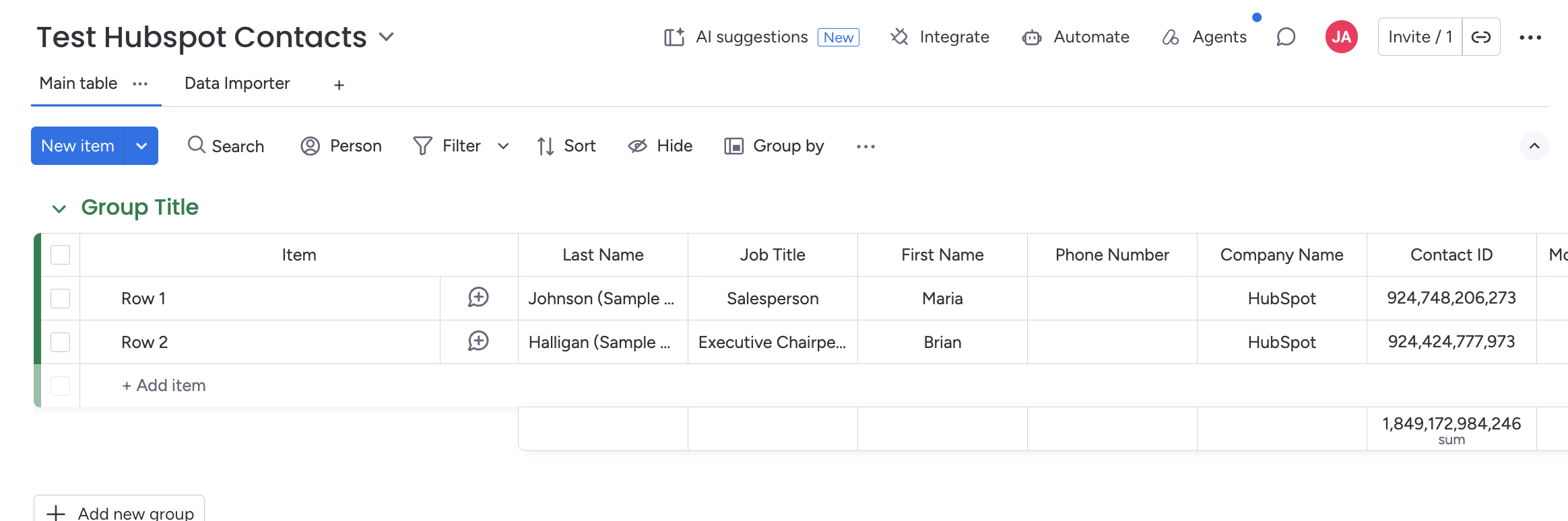
Automatically sync your data with your monday.com board
Now that you know how to import HubSpot contacts into a monday board, you can automate your imports by using Data Importer's scheduler. This means your boards will automatically refresh with the latest HubSpot contacts, even when you're offline or not signed into monday.com
You can customise the schedule by frequency, days of import, time and timezone.
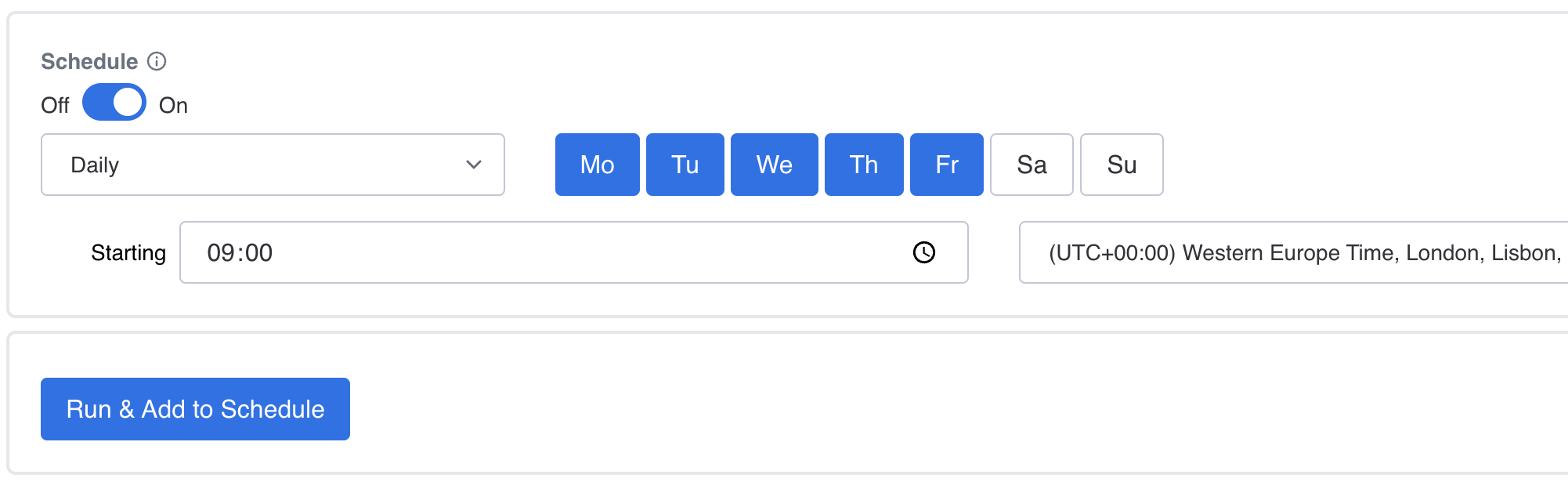
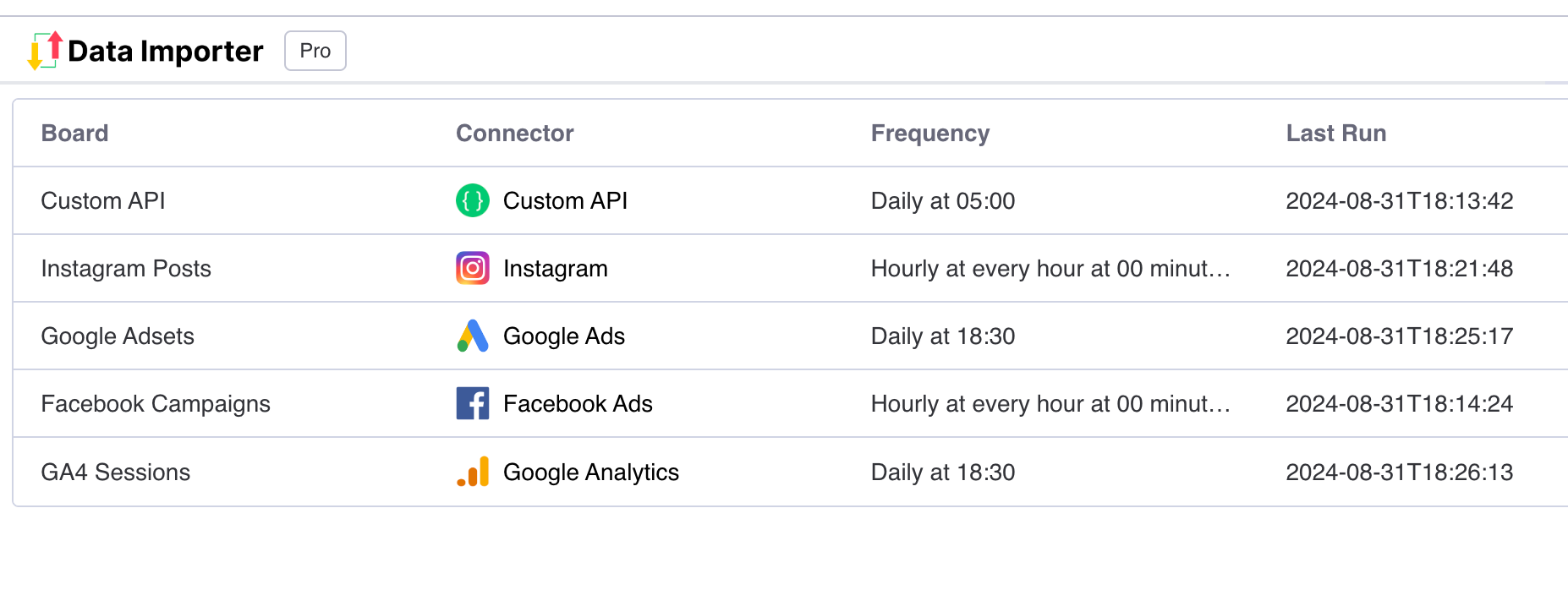
You can view all your scheduled imports in one table from all of your applications.