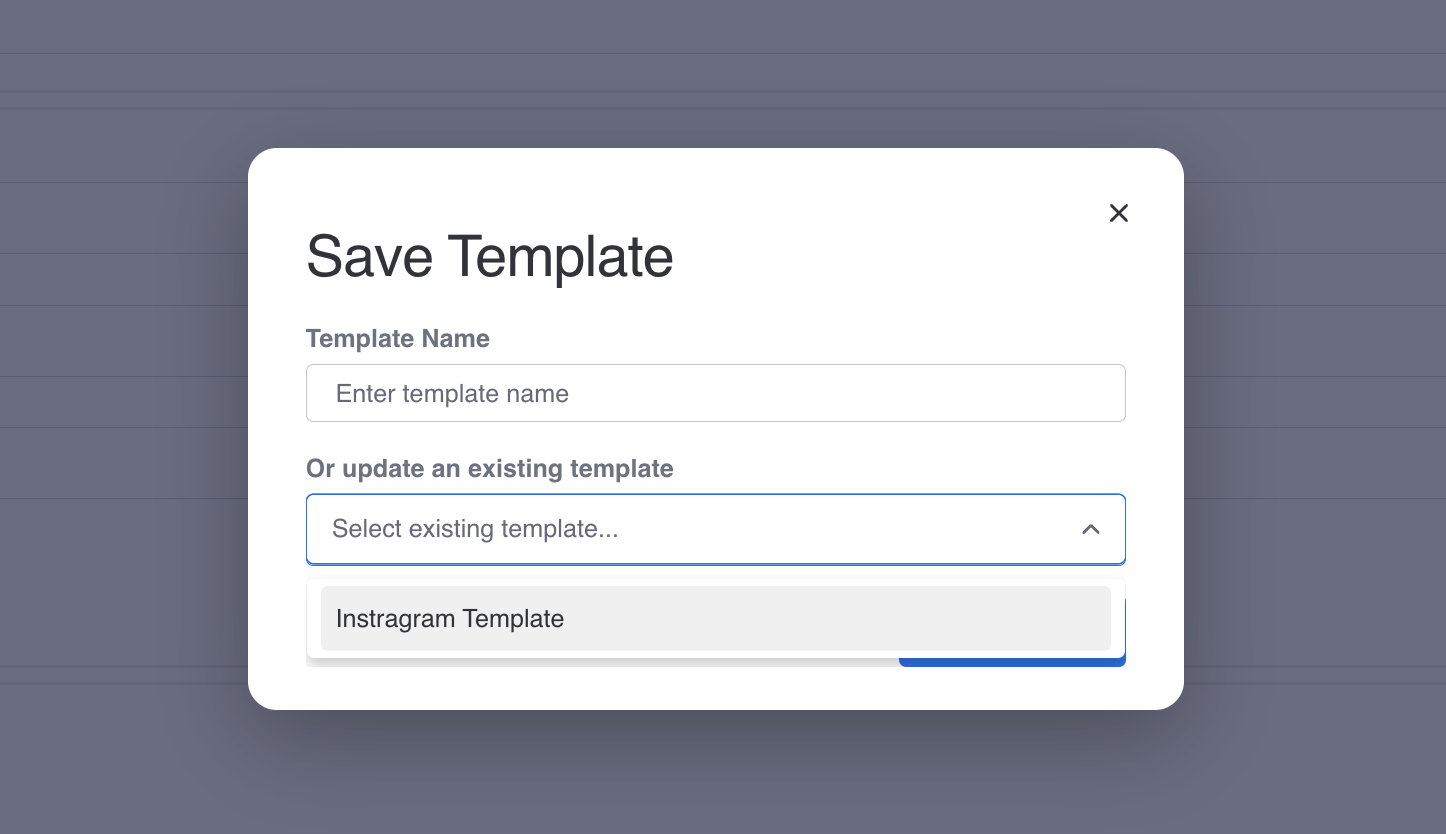
How to save a template import in monday.com
in this tutorial, we will show how you can save, update and run import templates with Data Importer. This is a big time saver if you have an import that you want to run multiple times at different periods, without having to set-up the import again.
Install the Data Importer app for monday.com
- You can install the Data Importer app from the monday.com app marketplace.
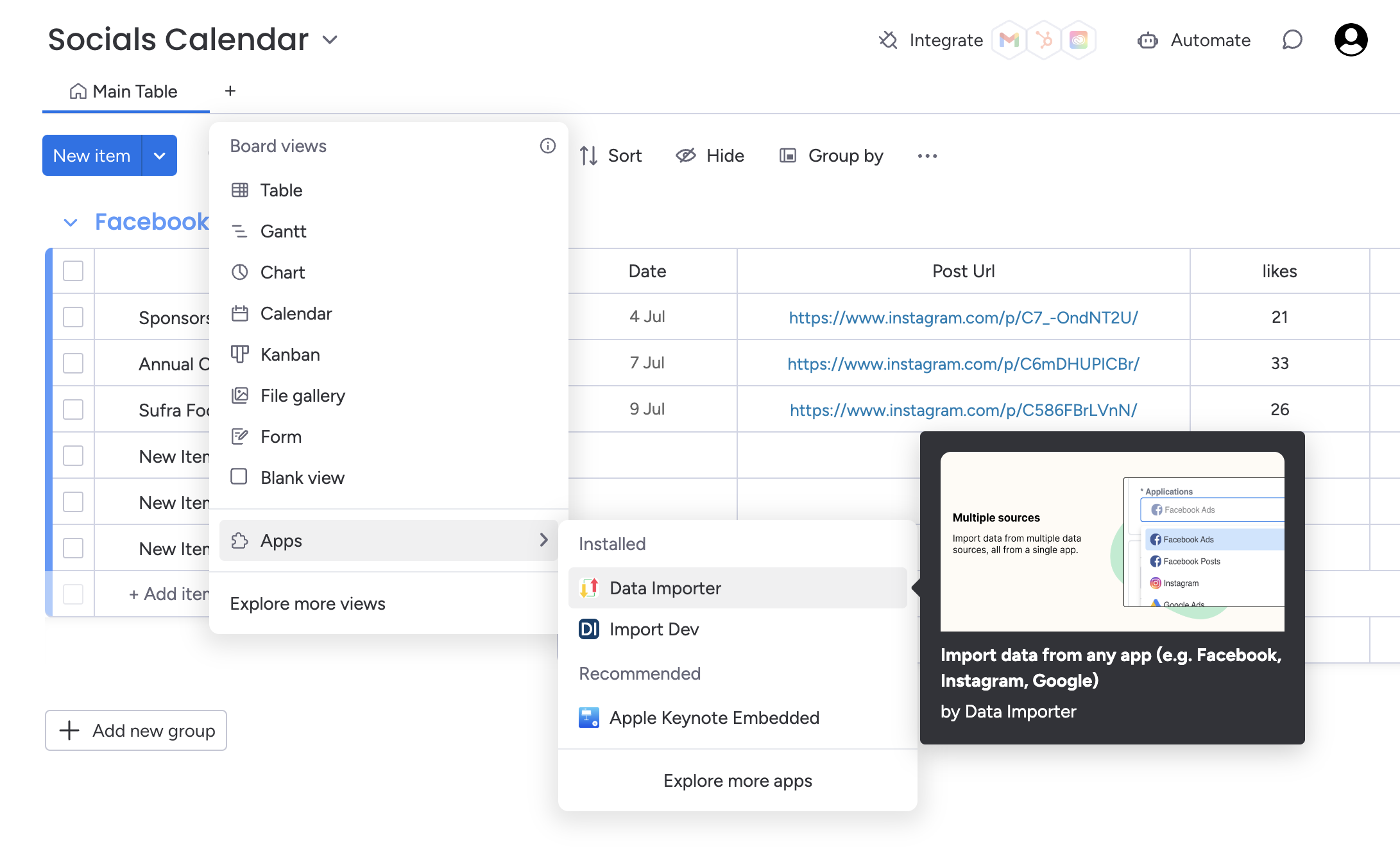
- Once you’ve installed the app, you can return back to your board, then press then press the add view button.
- Select the ‘Board views’ dropdown, press ‘Apps’ then select the ‘Data Importer’ app. This will load a new board view with the Data Importer app.
Set-up your import
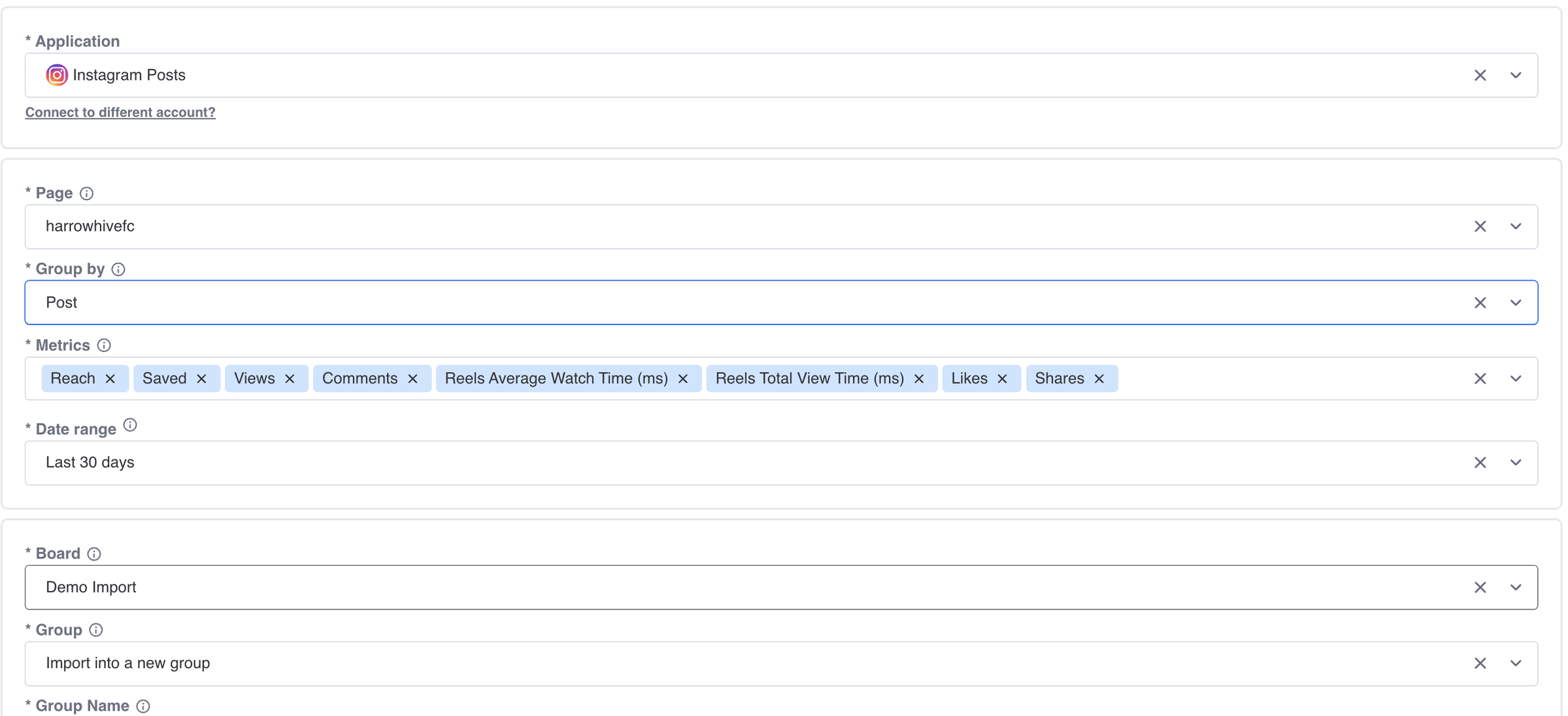
Set-up your import as usual, including selecting account, metrics, time periods, board and any column mappings.
Save your import
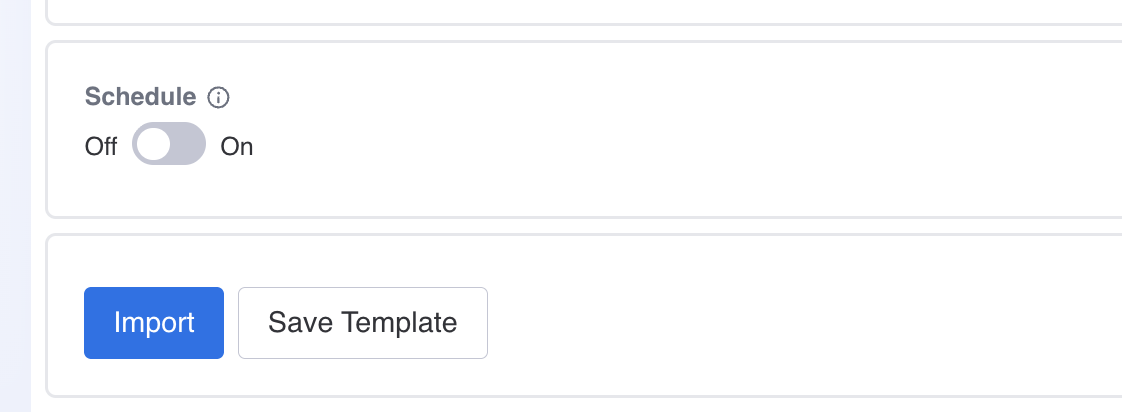
Press the Save Template button. You can then view your saved templates on the Templates tab
View, run and edit import
You can open templates if you want to run the same import again without having to make new changes to it.

You can also overwrite and an existing template if you want to update it.